Translucency and Vibrancy
macOS apps use translucency and blurring to evoke a sense of depth, by enabling views and controls to hint at content residing in the background. They also use vibrancy, a subtle effect that dynamically blends the foreground and background colors using a careful balance of lightening and darkening techniques. This combination helps make foreground content stand out against any background.
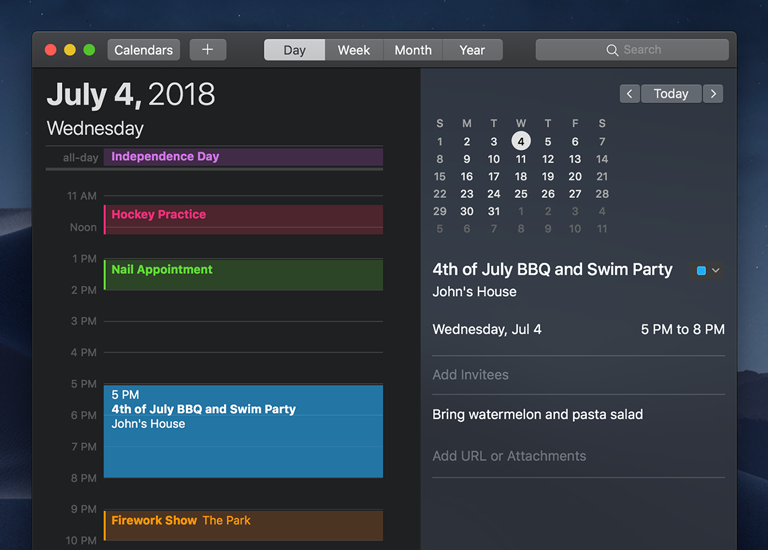
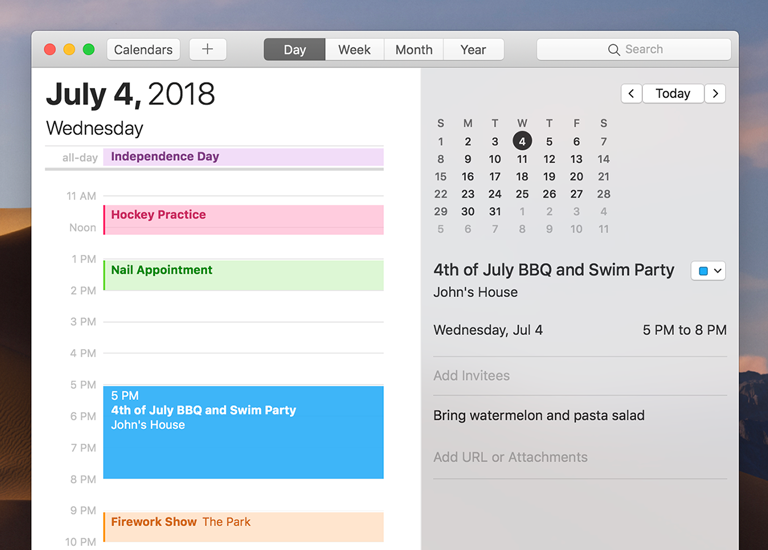
Be prepared for vibrancy. Vibrancy affects all apps—even ones that don’t display any vibrant views—because some elements, such as menus, are vibrant by default.
Enable and disable vibrancy in your app when appropriate. System views and controls adopt vibrancy automatically based on their configuration and system settings. For custom views and controls, you choose whether to allow vibrancy. See how your views look with vibrancy enabled, and adopt it when appropriate.
Prefer system-provided elements and colors. Some views enable vibrancy dynamically based on their color. Labels, for example, use vibrancy when their color is set to Label Color or Secondary Label Color. For related guidance, see Labels and System Colors.


Use template images. When used in a view with a translucent background, such as a sidebar or menu, full-color images may not have sufficient contrast with the background and may seem out of place. For related guidance, see Custom Icons.
Tip Translucency and vibrancy require the presence of a visual effect view in your view hierarchy. For developer guidance, see NSVisualEffectView.
Background Blending Modes
The system offers two ways to blend background content.
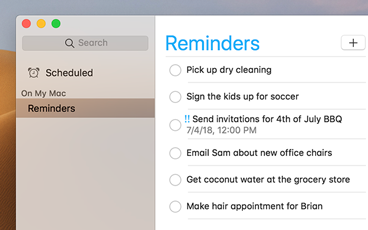
Behind-window blending. This blending mode allows the content behind a window to show through. Some interface elements, such as menus, sheets, and sidebar tables, adopt this mode automatically, although you can disable it if necessary.
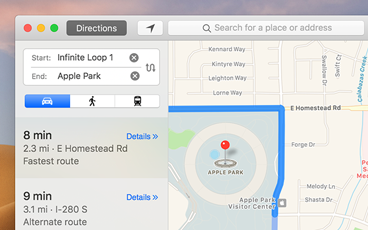
In-window blending. This blending mode is adopted by elements that reside on windows and allows window content residing behind the element to show through. Toolbars often implement this mode, and hint at window content that scrolls beneath the toolbar.
For developer guidance, see NSVisualEffectBlendingMode.
Materials
The system-provided materials define the amounts of translucency, blurring, and vibrancy applied to your interface. The system provides many standard materials for you to use, each one with a designated purpose. For example, materials exist for matching the default look of windows, menus, popovers, sidebars, title bars, and many others.
Choose materials based on their semantic meaning. The names of materials reflect where they are meant to be used, so use materials for their intended purpose. For example, use the header view material for a custom header view.
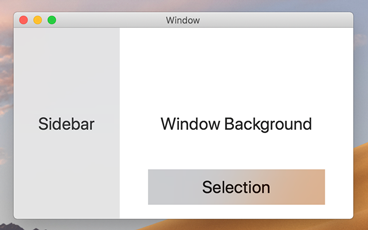
Light appearance
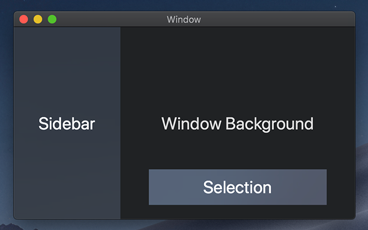
Dark appearance
Use system colors with system materials. When you use system-provided colors, you don’t need to worry about colors seeming too dark, bright, saturated, or low contrast in different contexts. For related guidance, see Color.
For developer guidance, see NSVisualEffectView.