Color
Color is a great way to provide status information, give feedback in response to user actions, and help people visualize data.
Use color judiciously for communication. In general, color should be used sparingly, like when you need to call attention to important information. For example, a red triangle that warns people of a critical problem becomes less effective when you use red elsewhere in an app for noncritical reasons.
Be aware of colorblindness. Many colorblind people find it difficult to distinguish red from green (and either color from gray), or blue from orange. Avoid using these color combinations as the only way to distinguish between two states or values. For example, instead of using red and green circles to indicate offline and online, Messages uses a red square and a green circle when the "Differentiate without color" option is enabled in Accessibility preferences. Some image-editing software includes tools that can help you proof for colorblindness.
Consider how your use of color might be perceived in other countries and cultures. In some cultures, for example, red communicates danger. In others, red has positive connotations. Make sure the colors in your app send the correct message.
Use sufficient color contrast ratios. Insufficient contrast in your app makes content hard to read for everyone. Icons and text might blend with the background, for example. An online color contrast calculator can help you accurately analyze the color contrast in your app to ensure that it meets optimal standards. Strive for a minimum contrast ratio of 4.5:1, although 7:1 is preferred because it meets more stringent accessibility standards.
Consider how nearby artwork and translucency affect colors. Color can lose its impact when composited over a non-neutral or translucent background, or when used adjacent to a very bright, colorful image.
Test your app’s color scheme under a variety of lighting conditions. Lighting varies significantly based on room ambiance, time of day, and more. Colors you see on your computer at design time won’t always look the same when using your app in an environment with bright ambient light conditions. Always preview your app under multiple lighting conditions, including outdoors with a laptop on a sunny day, to see how colors appear. Adjust colors to provide the best possible viewing experience in the majority of use cases.
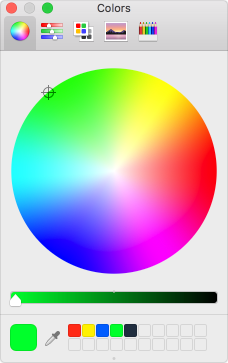
Use the standard color panel for user color changes. If your app lets people change colors, use the standard color panel to obtain the user’s color selection rather than designing a custom color-picker. The standard color panel provides a number of color selection modes, can be expanded with custom color selection modes, and allows the user to save swatches of frequently used colors. For developer guidance, see NSColorPanel. On a Mac equipped with a Touch Bar, you can also let people change colors using the standard color picker.
For developer guidance on color, see Color Programming Topics.
Color Management
Apply color profiles to your images. Color profiles help ensure that your app's colors appear as expected on different displays. The Standard RGB (sRGB) color space produces accurate colors on most displays.
Use wide color to enhance the visual experience on compatible displays. Wide color displays support a P3 color space, which can produce richer, more saturated colors than sRGB. As a result, photos and videos that use wide color are more lifelike, and visual data and status indicators that use wide color are more meaningful. When appropriate, use the Display P3 color profile at 16 bits per pixel (per channel) and export images in PNG format. Note that a wide color display is needed to design wide color images and select P3 colors.

Provide color space-specific image and color variations when the experience calls for it. In general, P3 colors and images tend to appear normally on sRGB displays. Occasionally, however, it may be hard to differentiate between two very similar P3 colors when viewed on an sRGB display. Gradients that use colors in the P3 spectrum can also sometimes appear clipped on sRGB displays. To avoid these issues, you can provide distinct images and colors in the asset catalog of your Xcode project to ensure visual fidelity on both wide color and sRGB displays.
Preview your app’s colors on actual sRGB and wide color displays. Make adjustments as needed to ensure an equally great visual experience on both types of displays.
Tip On a Mac with a wide color display, you can use the standard color panel to select and preview P3 colors and compare them with sRGB colors.
System Colors
macOS offers a range of standard system colors that automatically adapt to vibrancy (see Translucency and Vibrancy) and changes in accessibility settings like Increase contrast and Reduce transparency. Use these colors when choosing app tint colors that look great individually and in combination, on both light and dark backgrounds.
Don't hard code system color values in your app. The color values provided below are intended for reference during your app design process. The actual color values will fluctuate from release to release, based on a variety of environmental variables. Always use the API to apply system colors.
For developer guidance, see NSColor.
Dynamic System Colors
macOS defines a range of system colors that dynamically match the color scheme of standard interface controls like buttons and labels. These dynamic system colors are listed in the Developer palette of the standard color panel.
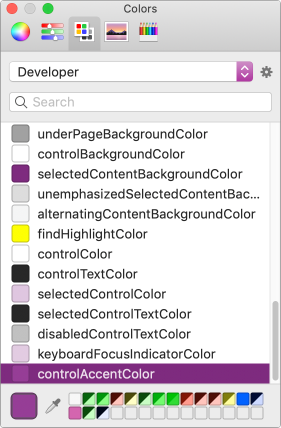
Standard color panel (light)
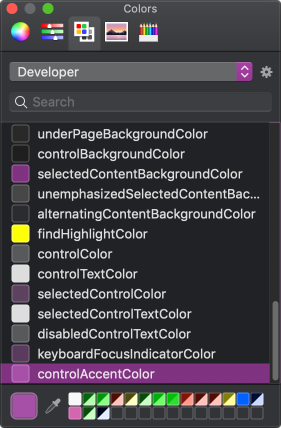
Standard color panel (dark)
Don’t redefine the semantic meanings of dynamic system colors. To ensure a consistent experience and ensure your interface looks great when the appearance of macOS changes in the future, use dynamic system colors as intended.
Don't try to replicate dynamic system colors. Dynamic system colors—some of which may be patterns—fluctuate from release to release, based on a variety of environmental variables. Instead of trying to create custom colors that match the dynamic system colors, use the dynamic system colors.
| Color | Used for | API |
|---|---|---|
| Alternate selected control text color | The text on a selected surface in a list or table. | alternateSelectedControlTextColor |
| Alternating content background colors | The backgrounds of alternating rows or columns in a list, table, or collection view. | alternatingContentBackgroundColors |
| Control accent | The accent color selected by the user in system preferences. | controlAccent |
| Control background color | The background of a large interface element, such as a browser or table. | controlBackgroundColor |
| Control color | The surface of a control. | controlColor |
| Control text color | The text of a control that isn’t disabled. | controlTextColor |
| Current control tint | The system-defined control tint. | currentControlTint |
| Disabled control text color | The text of a control that’s disabled. | disabledControlTextColor |
| Find highlight color | The color of a find indicator. | findHighlightColor |
| Grid color | The gridlines of an interface element such as a table. | gridColor |
| Header text color | The text of a header cell in a table. | headerTextColor |
| Highlight color | The virtual light source onscreen. | highlightColor |
| Keyboard focus indicator color | The ring that appears around the currently focused control when using the keyboard for interface navigation. | keyboardFocusIndicatorColor |
| Label color | The text of a label containing primary content. | labelColor |
| Link color | A link to other content. | linkColor |
| Placeholder text color | A placeholder string in a control or text view. | placeholderTextColor |
| Quaternary label color | The text of a label of lesser importance than a tertiary label such as watermark text. | quaternaryLabelColor |
| Scrubber textured background color | The background of a scrubber in the Touch Bar. For related information, see the Touch Bar > Visual Design > Color. | scrubberTexturedBackgroundColor |
| Secondary label color | The text of a label of lesser importance than a normal label such as a label used to represent a subheading or additional information. | secondaryLabelColor |
| Selected content background color | The background for selected content in a key window or view. | selectedContentBackgroundColor |
| Selected control color | The surface of a selected control. | selectedControlColor |
| Selected control text color | The text of a selected control. | selectedControlTextColor |
| Selected menu item text color | The text of a selected menu. | selectedMenuItemTextColor |
| Selected text background color | The background of selected text. | selectedTextBackgroundColor |
| Selected text color | Selected text. | selectedTextColor |
| Separator color | A separator between different sections of content. | separatorColor |
| Shadow color | The virtual shadow cast by a raised object onscreen. | shadowColor |
| Tertiary label color | The text of a label of lesser importance than a secondary label such as a label used to represent disabled text. | tertiaryLabelColor |
| Text background color | Text background. | textBackgroundColor |
| Text color | The text in a document. | textColor |
| Under page background color | The background behind a document's content. | underPageBackgroundColor |
| Unemphasized selected content background color | The selected content in a non-key window or view. | unemphasizedSelectedContentBackgroundColor |
| Unemphasized selected text background color | A background for selected text in a non-key window or view. | unemphasizedSelectedTextBackgroundColor |
| Unemphasized selected text color | Selected text in a non-key window or view. | unemphasizedSelectedTextColor |
| Window background color | The background of a window. | windowBackgroundColor |
| Window frame text color | The text in the window's titlebar area. | windowFrameTextColor |